
Playbook
How to build hyper-targeted lead lists with AI
Find Companies Based on What They Actually Do
Results
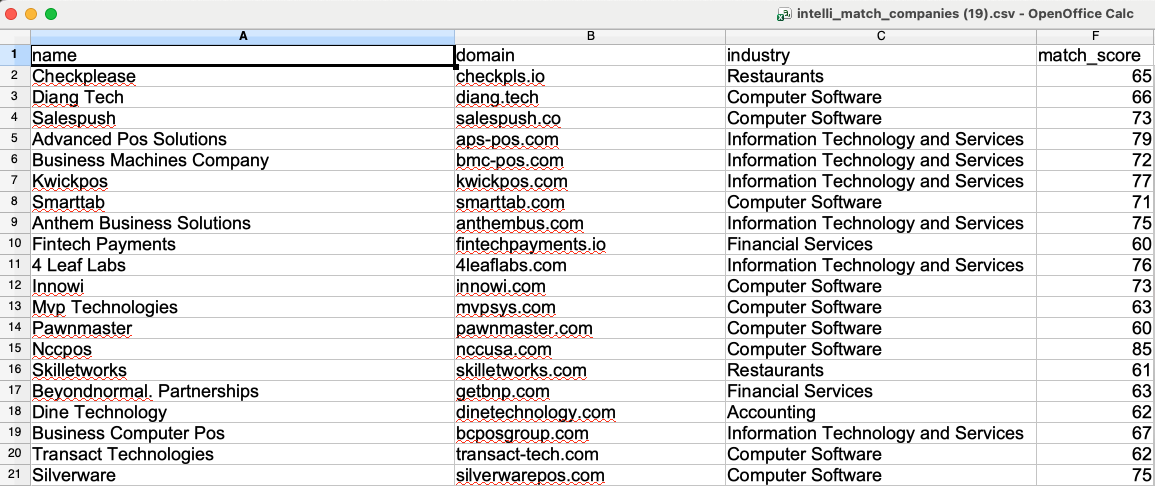
A preview of your export, which also includes industry, company size, LinkedIn URLs, match scores and more.
Some of the best prospects are impossible to find with filters. Say you're an SDR at a payments company like Stripe, or an agency running their outreach, and you want to build a lead list of companies that sell POS software for restaurants.
In most B2B databases, those companies are filed under a broad industry like "Software Development," with no way to filter for what the software does or who it's for. So you end up checking each company's website by hand to see if it fits, and once you've found the emails, you still have to verify them before you can send anything.
Intellimatch, Findymail's AI lead finder, works differently. Instead of picking filters, you describe the companies you're after in plain English. It reads company websites to find the ones that match, then finds the right person at each and their verified email, so your lead list is ready to use in one go.
What you need
- A Findymail account
- A sequencer to email your list
Describe your ideal company and choose a mode
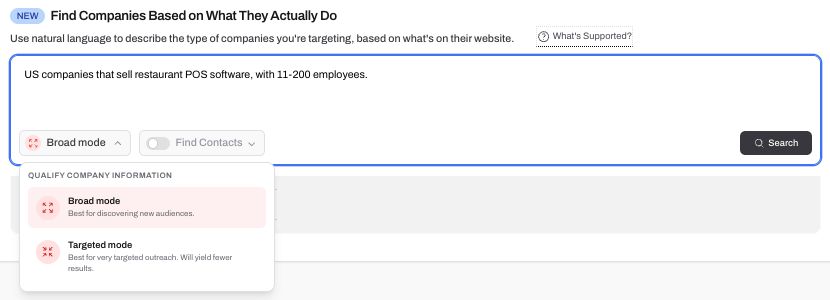
In Findymail, open Intellimatch from the left menu and type a description of the companies you want to reach, using the words they'd use on their own website:
We chose to target companies with 11-200 employees because the biggest restaurant POS companies already process payments themselves, so the opportunity for a payments company is with smaller platforms.
 Enlarge
Then pick one of two modes:
We'll use Broad mode here to see the full range of companies that fit.
Choose who you want to reach
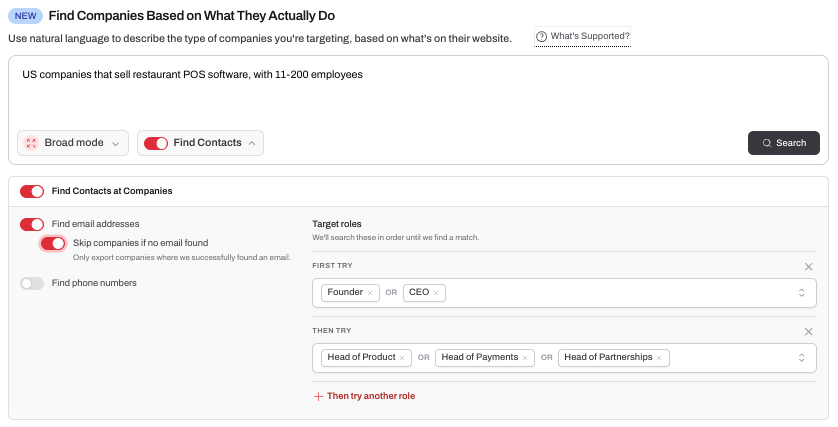
If you only need a list of companies, for example to target them with ads on LinkedIn, you can untoggle Find Contacts. In our case, we want to build a lead list to email people, so we'll keep Find Contacts on and set:
- Find email addresses: on. You can also turn on Find phone numbers if you plan to cold call, but we only need emails here.
- Skip companies if no email found: on. Since we're building this list for an email sequence, we need an email for every row.
- Roles: Intellimatch searches your roles in order until it finds a match, and returns one contact per company.
- First try: CEO, Founder. These aren't big companies, so the CEO or founder is usually who decides on a payments partner.
- Then try: Head of Product, Head of Payments, Head of Partnerships. If no CEO or founder is found, Intellimatch moves on to these.
 Enlarge
Run the search and check the sample
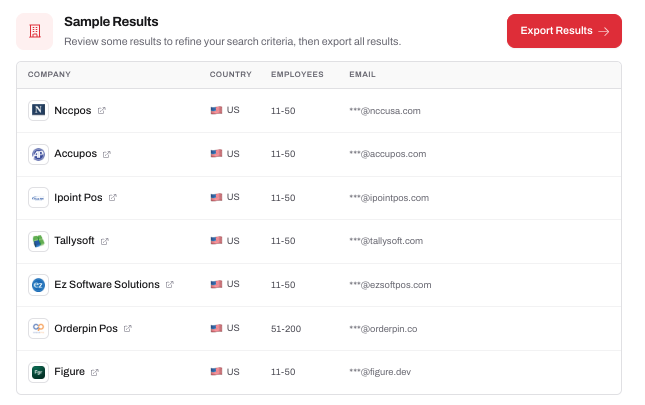
Click Search. Intellimatch shows a small sample of matching companies, with a link to each website. The goal is to check a few companies against your description, instead of reviewing every company in a large list.
 Enlarge
Let's open a few:
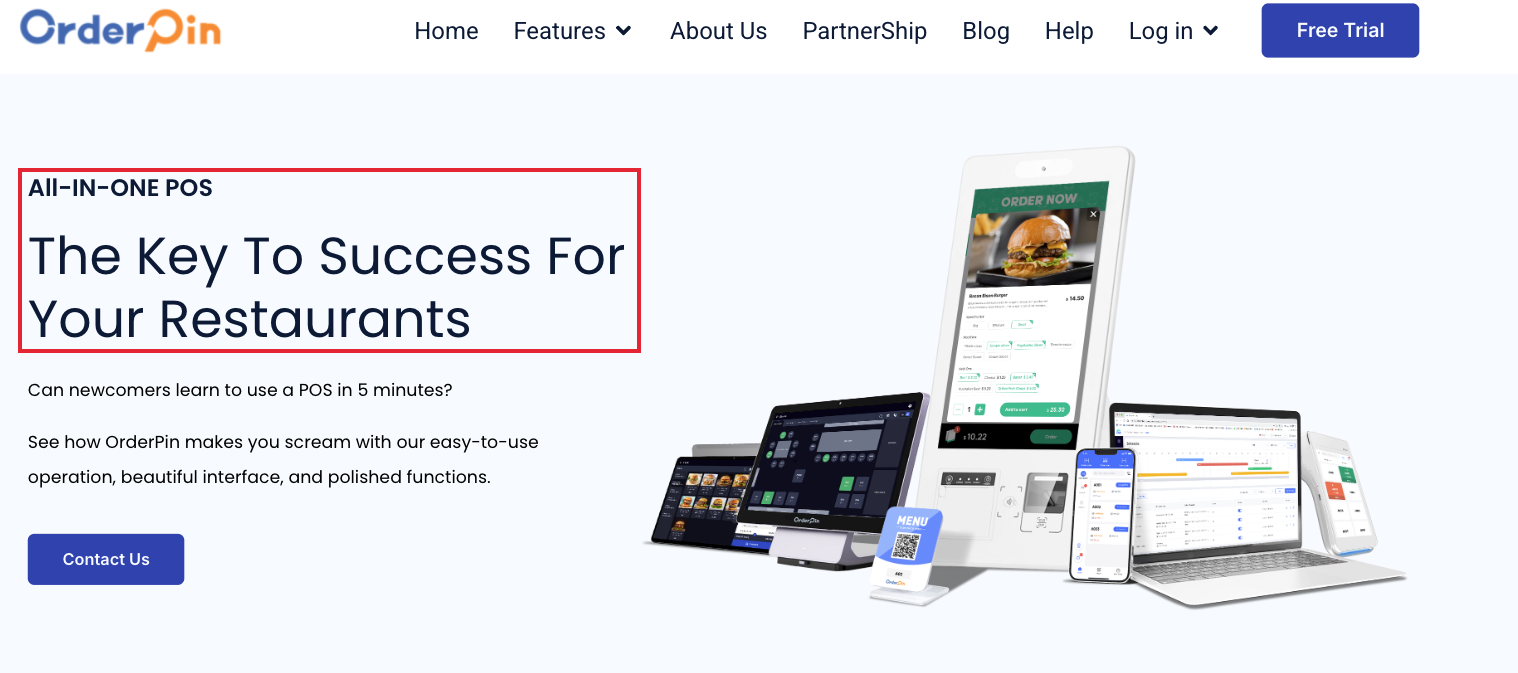
nccusa.comPOS software that covers restaurants, which fits exactly what we asked for. A filter would never have picked this up.accupos.comThe same, with a dedicated "Restaurant & Food Service POS" product. A perfect fit.orderpin.coLarger than the others, and it presents itself as an all-in-one POS built for restaurants, so it specializes in exactly our niche.
 Enlarge
If the sample looks off, adjust your description and search again.
Export your list
Once the sample looks right, click Export Results, then:
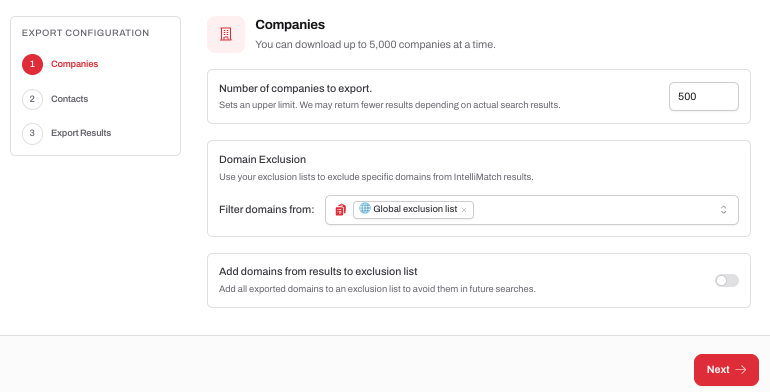
- Set the number of companies to export. This is an upper limit, and we'll use 500.
- Add domains to exclude (optional), like current customers or companies already in your pipeline, so you don't contact them by mistake.
 Enlarge
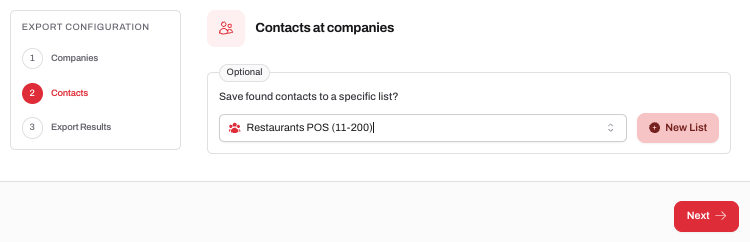
- Save the contacts to a list in Findymail, for example "Restaurant POS (11-200)." You'll get a file to download either way, but named lists make it much easier to filter and manage your contacts, and to push them to your sequencer or CRM later.
 Enlarge
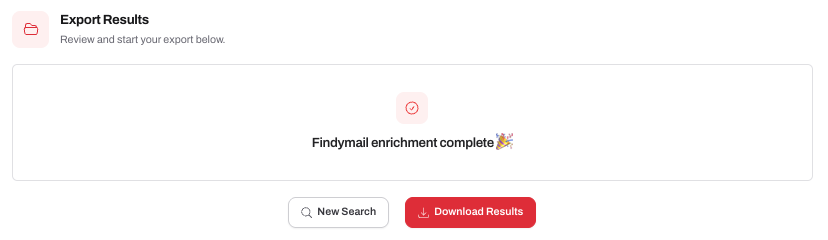
- Click Start Export. It takes a few minutes, and you can leave the page in the meantime. The finished file will appear on the same page, or in your History tab if you've left.
 Enlarge
Check your export
Our export returned 451 contacts, each with a verified email and a role that matches what we asked for. Every row includes:
- Company name, domain, industry, employee range and country
- Contact name, job title and LinkedIn URL
- Verified email
- A match score showing how closely each company fits your description
 Enlarge
Match scores help you spot the closest fits: the higher the number, the closer the company matches your description. You have every website domain in the file, so you can always spot-check a few to make sure. For example, we can already see that salespush.co and tonicpos.com are a strong fit.
Start contacting them
Go to Contacts and open your list to see every contact.
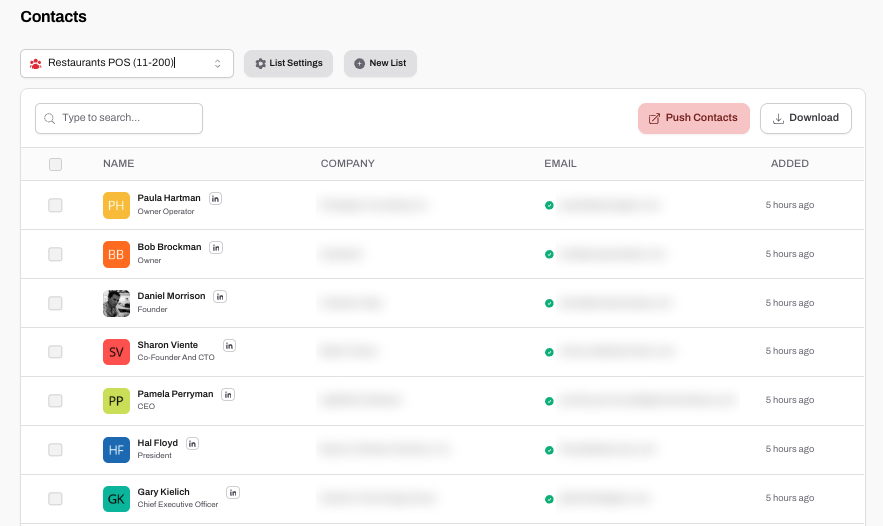 Enlarge
Click Push contacts to send them to your sequencer (like Instantly or Lemlist) or your CRM (like HubSpot or Salesforce), and start your outreach.
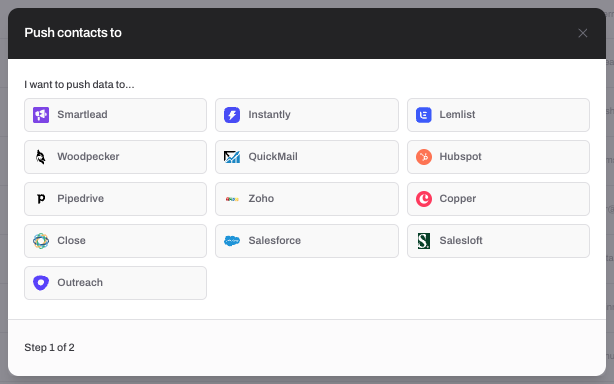 Enlarge
Try it with your own ICP
The same steps work for any niche you can describe, from accounting firms that specialize in e-commerce to agencies that work only with dentists. The trick is to write your description the way those companies talk about themselves on their websites, then check the sample before you export.
Ready to quickly build your targeted lead list?Trying out searches in Intellimatch is free. When you're ready to export wth verified contacts, the free plan gives you 10 credits to try it on a small sample.
Sign up