
Playbook
How to find decision-makers at 1,000 companies without a contact database
Your list
The decision-maker at each company
Verified emailsEach contact also comes with their LinkedIn URL, ready to push to your sequencer or CRM.
You have a list of companies you want to reach: target accounts in your CRM, a spreadsheet from your sales team, or the exhibitor list from a trade show. What you don't have is the right person at each one, or their email.
A contact database like ZoomInfo can fill that in, but you pay for seats and access to millions of contacts to look up one or two people per company. And because these databases are static, many of their emails are out of date by the time you use them, so they bounce unless you verify them first.
What you need is the right person at each company, fast, with an email that actually gets delivered. With Findymail, you upload your list of company websites with the job titles you're after, and get back the decision-maker at each company with a verified email.
This guide shows the full process on a real example: 1,000 target accounts, where Findymail found the head of sales at 883 of them in under 2 minutes.
What you need
- A Findymail account
- A list of the companies you want to reach, with their website domain
- The job titles you're looking for at each company
Prepare your list
Your list of companies can come from almost anywhere: your CRM, a target account spreadsheet, a list a client gave you, a trade show's exhibitor or attendee list, an industry directory, or every company using a specific technology, like all the Shopify stores in a niche.
How you enrich it depends on what's in it:
- If you only have company domains, you'll choose the roles you want to reach, and Findymail finds the person and their email. That's what we'll do in this guide.
- If you already have people's names and their company domains, you only need their emails, and Findymail finds them from the name and domain.
Say you sell a sales coaching tool to B2B software companies, and you have 1,000 target accounts to contact, pulled from your CRM and a trade show directory.
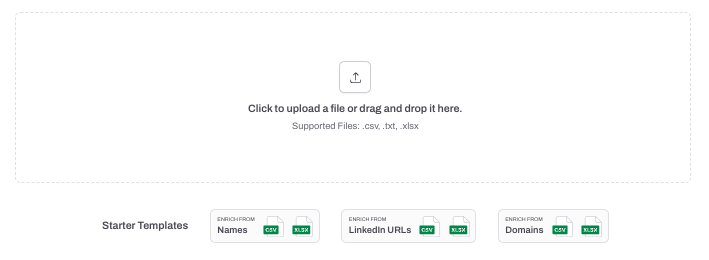
To get the format right, go to Email Finder, open the Bulk tab, and download the Enrich from Domains starter template (CSV or XLSX).
 Enlarge
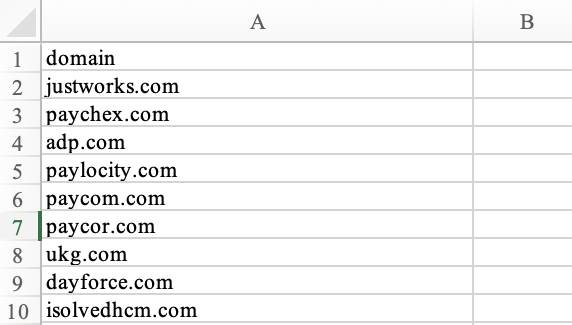
Paste your domains into it, one company per row, and your list is ready to upload.
 Enlarge
Upload your list and choose the roles
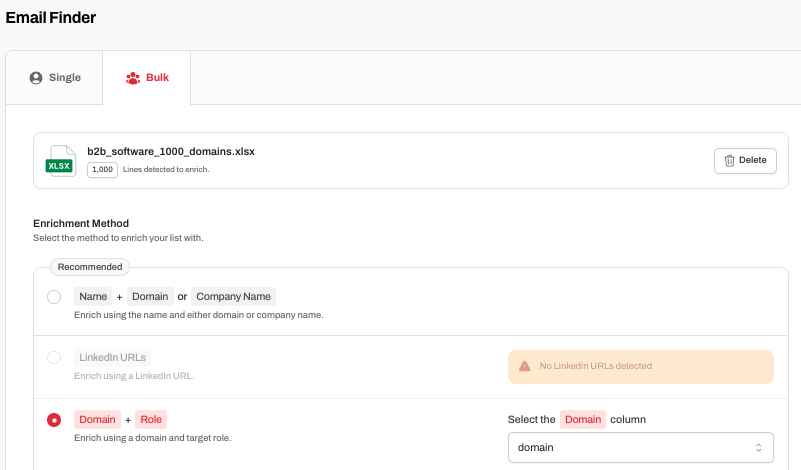
In the Bulk tab of the Email Finder, upload your file. Then set it up:
- Check the enrichment method. If you used the template, Domain + Role is selected automatically, along with your domain column.
 Enlarge
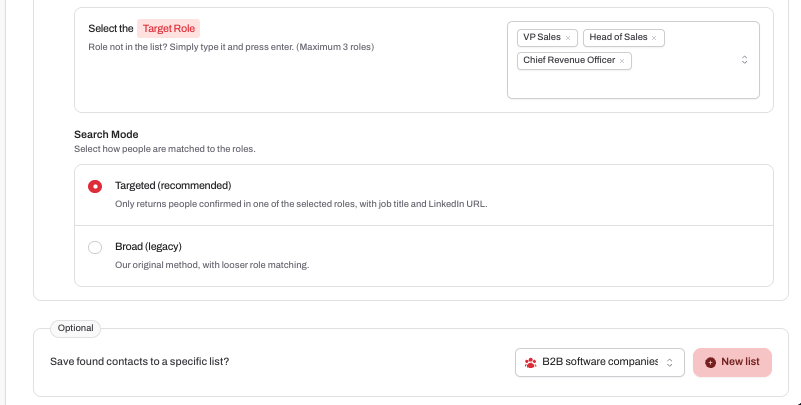
- Pick your target roles. You can add up to 3 job titles, from the suggestions or typed in yourself, and the order matters: Findymail looks for the first role, and moves to the next one only if it doesn't find it. Put the person most likely to buy first. In our example, a sales coaching tool is usually bought by the head of sales, so we'll use VP Sales, then Head of Sales, then Chief Revenue Officer. You'll get one person per company, so if you want several people at each one, like the head of sales and the CEO, run a separate enrichment for each role.
- Choose the search mode. Targeted only returns people confirmed in one of your roles, with their job title and LinkedIn URL. Broad matches roles more loosely. For a list like ours, Targeted is the one to use.
- Save the contacts to a list (optional). You'll get a file with the results either way, but saving them to a named list, like "B2B software companies - sales leaders", makes Step 4 much easier.
 Enlarge
Start the enrichment and review the results
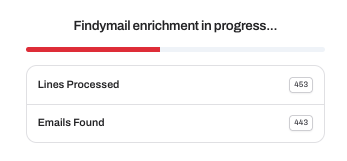
Click Start Enrichment. Findymail goes through your domains one by one, looks for the people in your roles in real time, and only returns emails it has verified as valid.
 Enlarge
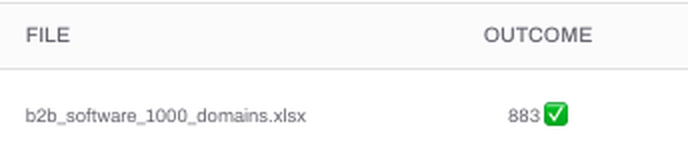
In our example, the 1,000 domains took 1 minute and 46 seconds, and Findymail found a sales leader with a verified email at 883 of the 1,000 companies (88.3% find rate).

 Enlarge
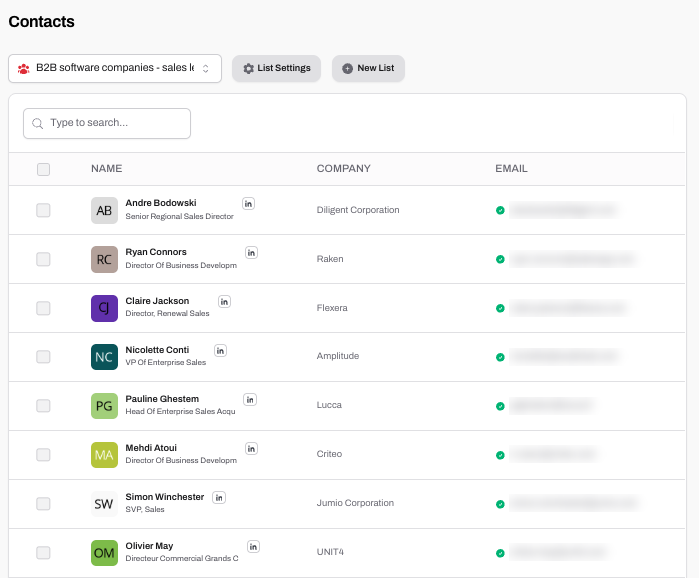
When it's done, you can download the file from Recent Enrichments, or open Contacts and select your list. Before using it, go through the results:
- In the job titles, you'll see variations of your roles: VP Sales and Head of Sales, but also Director of Sales or Commercial Director.
- For the companies with no match, you can run the enrichment again on just those, with other roles. If they're smaller companies, CEO or Founder can make sense.
 Enlarge
Push your list to your CRM or sequencer
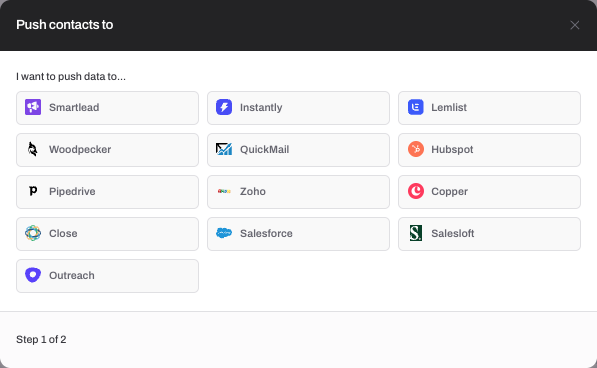
If you saved your contacts to a list in Step 2, you can send just those contacts to the tool you use for outreach. In Contacts, select your list and click Push Contacts, then choose where to send it: a sequencer like Instantly, Lemlist or Smartlead, or a CRM like HubSpot or Salesforce. Only the contacts from that list are sent, and every email is already verified, so you can start your outreach right away.
 Enlarge
Try it with your own list
The same steps work for any list of companies, whether it's 50 accounts from an event or thousands of Shopify stores. Spend the most time on the roles: put the most likely buyer first, and pick titles that fit the size of the companies on your list.
Ready to find the decision-makers at your target accounts?Sign up to Findymail and run your first list.
Sign up