AI Lead Finder
 Email Finder
 Email Verifier
 Phone Finder
 Intent Signals
 CRM Enrichment/Cleaning
 API


What this guide covers: an 8-step cleanup you can run in any HubSpot account, plus the routine that stops the mess coming back.
The 8 steps:
1. Back up your data
2. Audit with filters and saved views
3. Sort your hard bounces
4. Update contacts who changed jobs
5. Deal with unengaged contacts
6. Merge duplicate contacts and companies
7. Standardise property values
8. Archive unused properties and assets
Watch out for: HubSpot merges can't be undone, so export before you start.
Every HubSpot database starts out tidy. A year of imports and job changes later, you're paying for contacts who bounce while your reps chase people who left in 2024.
HubSpot's cleanup tools are free, just scattered, and HubSpot only finds out an email is dead after it bounces.
Here's the whole cleanup in 8 steps, with the exact clicks, plus how to keep it tidy.
Want a baseline first? You can book a free CRM audit with Findymail CRM Datacare. It's read-only, so nothing in your CRM changes, and here's what one turned up in a CRM with 42,318 contacts:

How to Clean Up Your HubSpot Database in 8 Steps
Good news, you can do most of this on any HubSpot plan. Where something needs a paid hub, we'll say so.
Step 1: Back Up Your Data Before You Change Anything
Before you touch anything, export everything. HubSpot merges are permanent, and while deleted records sit in a recycle bin for 90 days, restored ones don't come back exactly as they were. The restore tool can also only show and restore 10,000 records at a time, so undoing a big bulk delete means working through it in batches.
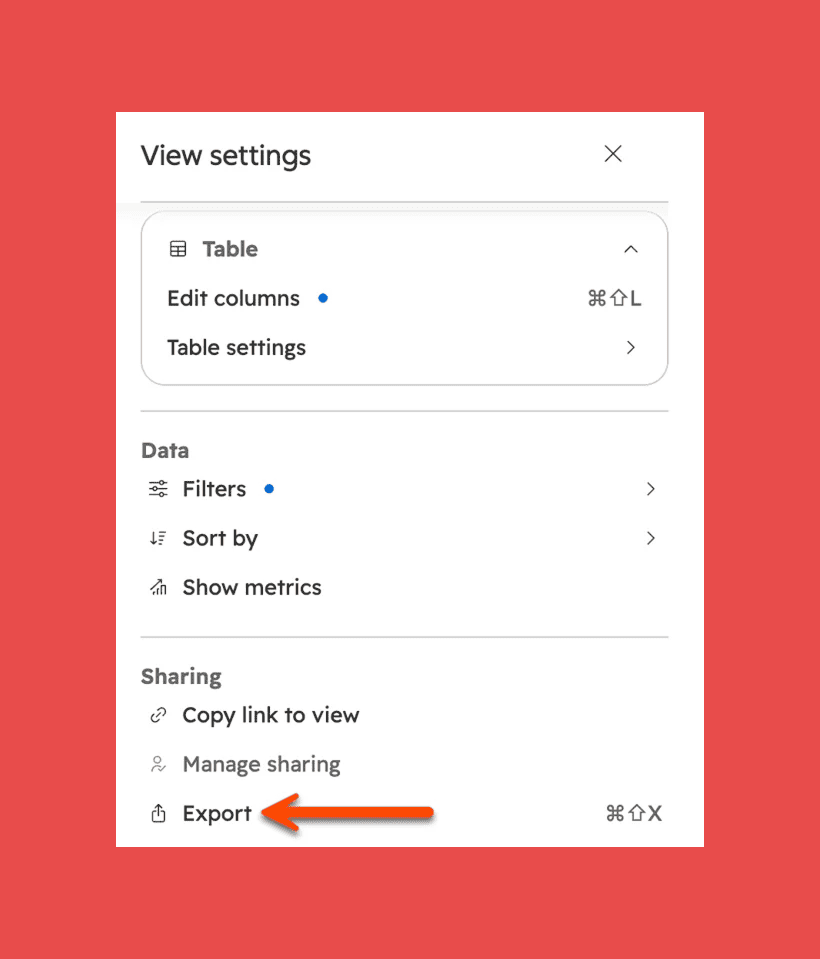
Go to CRM > Contacts, click Export, tick all properties and download it. Then do the same for companies and deals. Grab your property list from Settings > Properties while you're at it.
While that runs, have a quick chat with sales about what counts as a dead record. You really don't want to be the one explaining why a prospect's CFO vanished during "a quick tidy".
Step 2: Audit Your Database With Filters and Saved Views
Everyone knows the CRM is a mess. Saved views tell you exactly how much of a mess, in numbers you can actually work through.
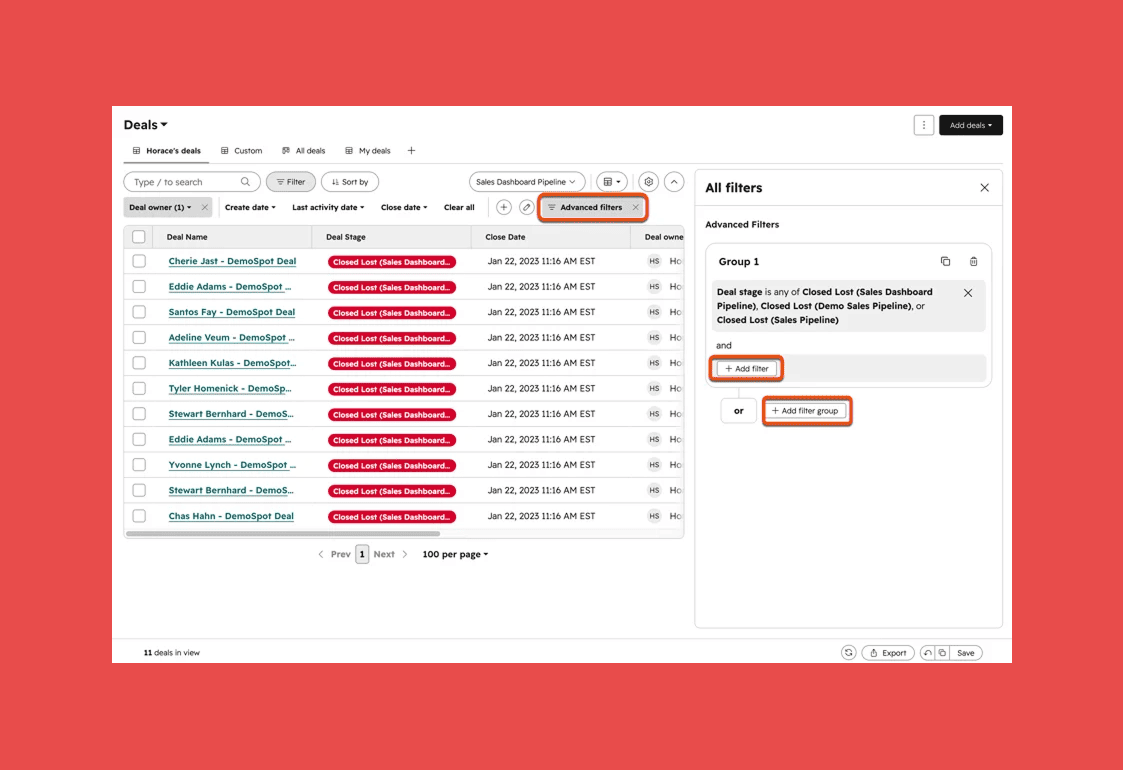
In CRM > Contacts, click Advanced filters to build one view per problem, then click the save icon to keep each one as a saved view tab. These four are a good start:
| View | Filter to use | What it tells you |
|---|---|---|
| Missing email | Email is unknown | Records you can't email or dedupe automatically |
| No company | Primary associated company ID is unknown | Contacts floating free of any account |
| Gone quiet | Last activity date, recent conversion date, last marketing email click date and time last seen are all more than 365 days ago (or unknown) | Candidates for steps 4 and 5 |
| Hard bounced | Email hard bounce reason is known | Addresses that are already dead |
Jot down the count for each one. That's your before photo, and it's how you'll prove the cleanup actually worked.
On any Starter plan or above, Data Management > Data Quality gives you a head start too: an overview of possible duplicates, formatting issues and properties that are empty or unused.
This is where Datacare earns its keep. It finds where bounced contacts went, gets their current email and moves them to the new company with their history, so a job move never turns into a duplicate. It can also ping your team in Slack, trigger a webhook or run a custom action when someone switches companies. Curious how many of yours have already moved on? Book a free CRM audit to find out.
Step 3: Sort Your Hard Bounces
HubSpot stops emailing hard-bounced contacts on its own, but the records hang around, and if they're marketing contacts you're still paying for them.
Don't just bulk-delete them, though. A bounce from a work address that used to be fine usually means the person left, and deleting them throws away the contact and all their history. Open the hard-bounced view from step 2 and sort by bounce reason instead:
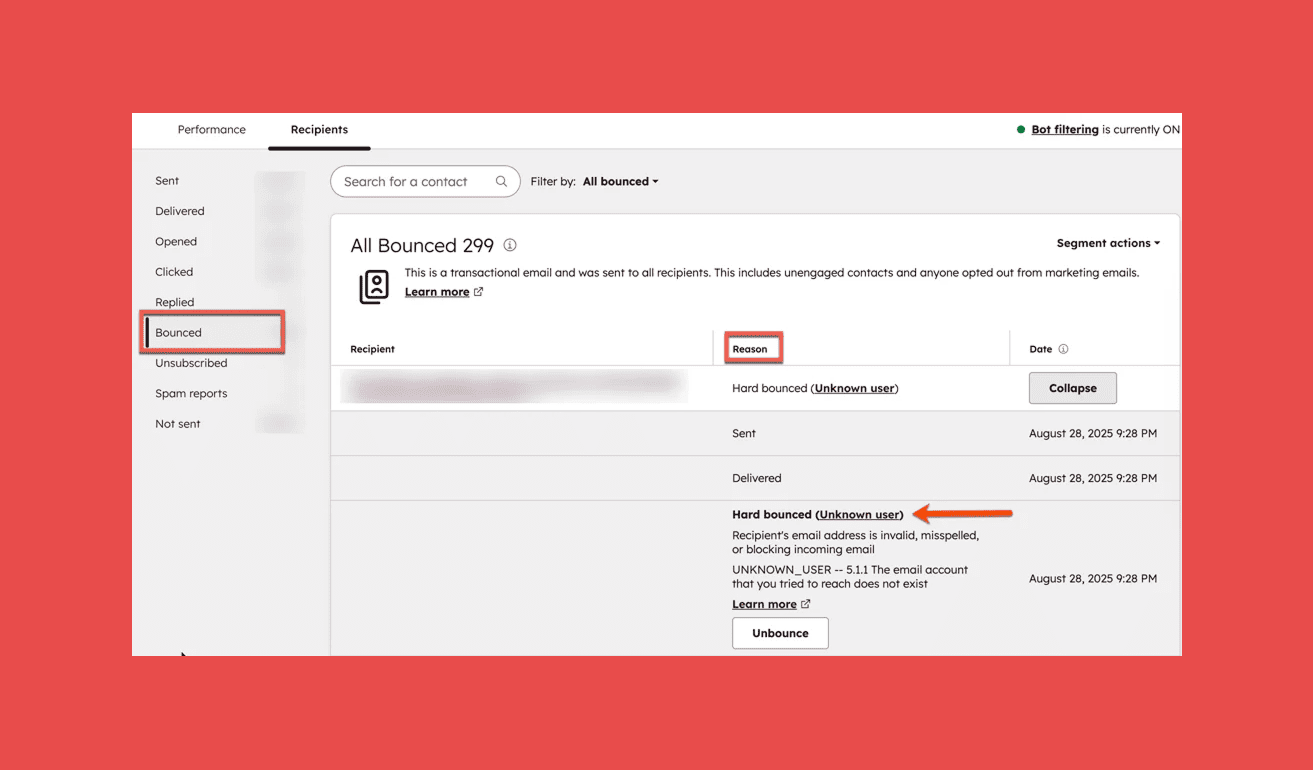
- Mailbox doesn't exist, on a work address that used to work: they've probably left. Set them as non-marketing so you stop paying for them, then find out where they went (that's the next step).
- Blocked, spam or policy: the problem's on your side, not theirs. Leave the record alone and check your sending setup.
- Typo, fake or junk address with no history: it was never a real contact, so delete it.
- Anything with deal history: never delete it. Flag it instead.
The trouble is that HubSpot only finds out an address is dead after you've emailed it, and every bounce chips a bit off your sender reputation. So verify old imports and event lists before your next big send. Even HubSpot's own guidance calls event lists a low-quality source.
Step 4: Update Contacts Who Changed Jobs
People don't email you to say they've changed jobs, so you've got to spot the signs yourself. An address that used to work suddenly hard bounces, an out-of-office says they've left, or a contact on an active account goes completely quiet for a year.
When you find one, update the existing record instead of creating a new one (that's exactly how duplicates are born). If you know their new company and job title, change them. If you don't, set a custom property like "Employment status: left company" so sales doesn't ring a dead line.
That's fine for a few dozen records. At a few thousand, updating the record isn't the hard part. Knowing who left, and where they went, is, and you'd be checking LinkedIn profiles one by one. Datacare does that part for you: it spots the job change, finds their current email and moves them to the new company with their history.
Step 5: Decide What to Do With Unengaged Contacts
HubSpot calls a contact unengaged if they've never opened or clicked one of your marketing emails and have ignored your last 11 sends, or if they did engage once but have ignored your last 16.
Pull those contacts into a view, then decide what to do with each group:
| Do this | When |
|---|---|
| Delete | Junk or fake addresses, no deal history, no open opportunities |
| Set as non-marketing | Customers or past deal contacts who don't read marketing email |
| Keep and re-engage | Recent leads, or contacts with recent clicks, form fills or meetings |
To switch a group off, select them and choose More > Set as non-marketing contacts. If you pay for marketing contacts, the change only kicks in at your next update date, so don't leave it until the week before renewal.
Step 6: Find and Merge Duplicate Contacts and Companies
HubSpot already catches contacts with the same email and companies with the same domain. The ones that sneak past are contacts with no email, people who've signed up with both a work and a personal address, and companies created by the API or synced apps, which skip the domain check altogether.
Merging works on every plan. Open the record you want to keep, click Actions > Merge, find the duplicate and confirm. Companies work exactly the same way.

If you're on Professional or Enterprise, CRM > Contacts > three-dot menu (upper right) > Manage duplicates shows you pairs HubSpot thinks are the same person, and it looks for new ones every day.
Step 7: Standardise Property Values
When one contact says "USA" and another says "United States of America", your filters, reports and personalisation tokens all start misbehaving. Pick one format per property and bulk-fix the rest.
Build a view that catches all the variants, select everything in it and click Edit to set one value for the lot. Country is usually the worst offender:

| What's in your CRM | What it should say |
|---|---|
| usa, U.S., US, United States of America | United States |
| uk, U.K., Great Britain | United Kingdom |
Then do the same for state, job title and any custom text field. If a free-text field keeps sprouting new variations, switch it to a dropdown in Settings > Properties so nobody can get creative with it again.
Bulk edit only sets one value at a time, though. That's fine for country, but job titles can have dozens of variants and you'd be at it all week. For those, export the records with their Record ID, clean up the file, then re-import it with Update existing contacts only. Map the Record ID column to Record ID, or HubSpot won't update the existing records.
Step 8: Archive Unused Properties and Old Assets
Last one, and it's oddly satisfying. Fewer properties means fewer wrong ones to pick, so clear out the clutter.
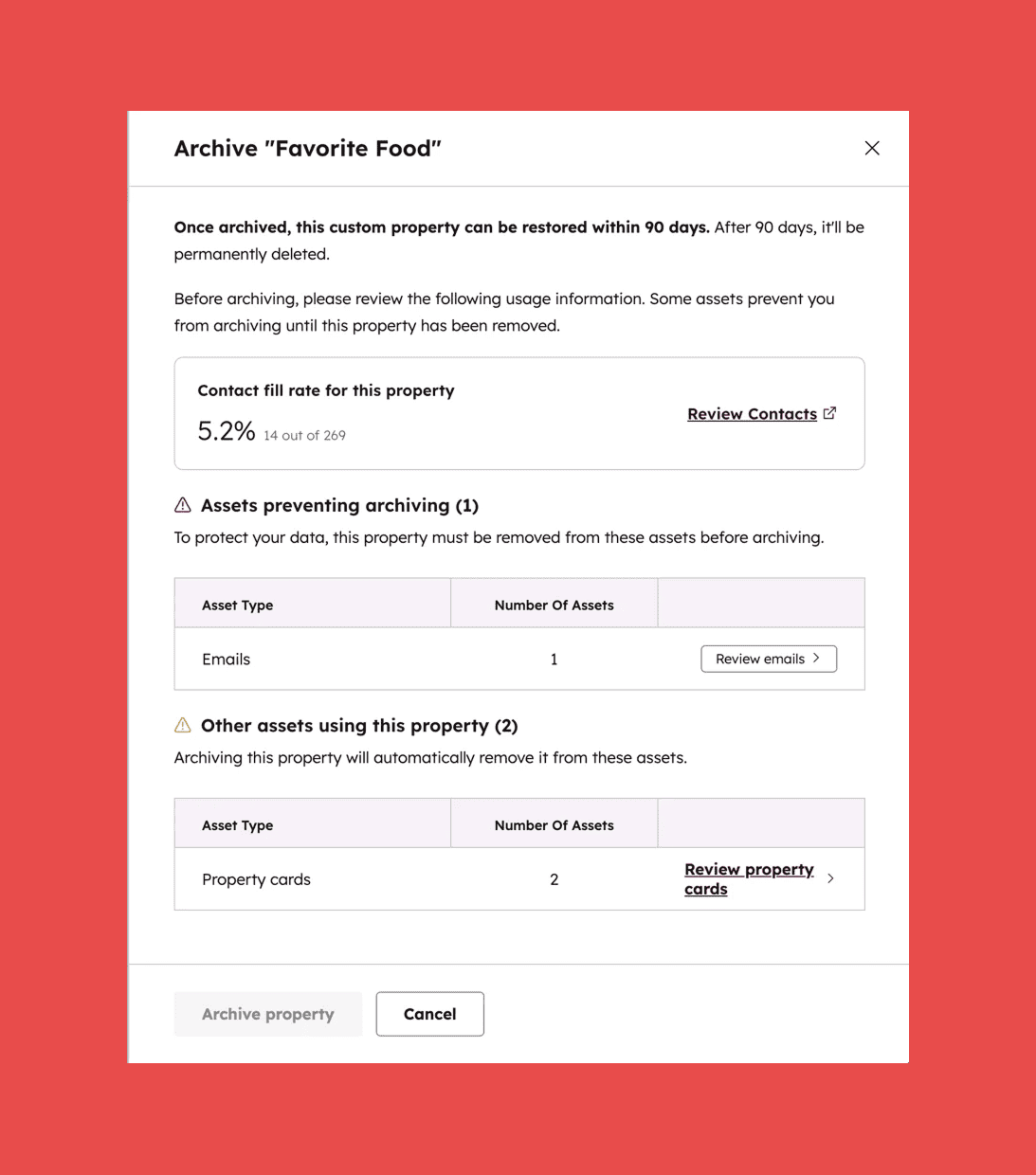
In Settings > Properties, find the custom properties that are empty or unused and archive the ones nobody needs. Then give stale segments, workflows and email templates the same treatment. HubSpot's account cleanup tool will point out unused assets for you.
Optional: When Is Data Hub Worth It?
Most teams won't need this. Data Hub (called Operations Hub until 2025) only pays for itself when you've got a lot of records and merging pairs one at a time just isn't realistic anymore.
If that's you, Data Hub Professional adds:
- bulk duplicate management, so you can review and merge many pairs at once
- custom duplicate rules that match on the properties you choose
- a Format data workflow action that fixes capitalisation and formatting on its own
- bulk fixes and automatic rules for formatting issues on the data quality page
What Cleanup Tools Come With HubSpot?
Every HubSpot account gets the basics. The heavier stuff sits behind paid hubs:
| Tool | Free and Starter | Professional (any hub) | Data Hub Professional |
|---|---|---|---|
| Automatic dedupe by email and domain | Yes | Yes | Yes |
| Merge records one at a time | Yes | Yes | Yes |
| Filters, saved views and bulk edit | Yes | Yes | Yes |
| Export and import | Yes | Yes | Yes |
| Data quality overview (duplicates, formatting issues, unused properties) | Starter only | Yes | Yes |
| Manage duplicates tool | No | Yes | Yes |
| Workflows | No | Yes | Yes |
| Bulk duplicate merging and custom duplicate rules | No | No | Yes |
| Format data workflow action | No | No | Yes |
On the free CRM or Starter, all 8 steps still work, just with more clicking.
Why Do HubSpot Databases Get Messy?
Part of it is decay. People change jobs, and their old work addresses die with them. The US Bureau of Labor Statistics put median job tenure at 4.1 years in January 2026, and just 3.0 years for workers aged 25 to 34.
The other part is bad data coming in the front door. Imports bring duplicates and weird formatting, forms collect personal addresses, and companies created by synced apps skip HubSpot's domain check. None of it looks like a big deal on the day, which is exactly how it piles up.
Executive search firm Perpetual learned this the hard way: over 160,000 HubSpot contacts, many never verified, and a 10% hard bounce rate. Once Datacare started verifying and enriching them automatically, bounces fell below 2%. Read how Perpetual cleaned up their HubSpot database.
And it adds up: Gartner research from 2020 put the average cost of poor data quality at $12.9 million a year per organisation.
How Do You Automate CRM Data Hygiene in HubSpot?
Automating HubSpot data hygiene really comes down to keeping bad data out, letting workflows fix what they can and putting the rest on a calendar someone actually owns. Just note that workflows need a Professional plan.
Stop Bad Data at the Door
- Always include an email address or Record ID when you import, so HubSpot matches existing records instead of creating new ones.
- Check the marketing status on every import and form. Imports default to non-marketing and HubSpot forms default to marketing, which catches a lot of people out at renewal time.
- Use dropdowns instead of free text for country, industry and job function.
- Make email required on any form that feeds sales.
Let Workflows Handle the Repetitive Bits
A few workflows worth setting up:
- Set contacts as non-marketing once they've been unengaged for a set period.
- Notify the record owner when a field like company or lifecycle stage is empty.
- With Data Hub Professional, use the Format data action to fix capitalisation and phone formats as records come in.
Put the Rest on a Calendar
| When | What to check |
|---|---|
| Weekly | New hard bounces and possible duplicates (the duplicates list is a paid feature, on Professional and up) |
| Monthly | Formatting issues and unengaged contacts |
| Quarterly | Full audit with your saved views, job changes and unused properties |
| Before renewal | Marketing contact count |
A calendar works right up until the quarter gets busy, and that's where Datacare can take over. It runs in the background, enriching new records, merging duplicates and swapping invalid emails for verified ones. And if the thought of an integration loose in your CRM makes you nervous, No Override is on by default: Datacare leaves the values your team entered alone and only fills the gaps. Want it to fix bounced emails or stale job titles too? You switch that on field by field, and anything it changes can be rolled back, which is more than HubSpot's merge button can say. Findymail sets it up with you, so there's no learning curve either. Book a free CRM audit to see where your CRM stands.
How Do You Measure HubSpot Data Quality?
You don't need a fancy dashboard for this. Track a few numbers from your step 2 views and watch which way they're heading, rather than chasing a perfect score.
| Metric | How to work it out | How often |
|---|---|---|
| Duplicate rate | Possible duplicate pairs in Manage duplicates ÷ total contacts (Professional and up; on the free CRM you can only spot-check by sorting a view by name) | Monthly |
| Completeness | Share of contacts with email, company, job title and lifecycle stage filled in | Monthly |
| Hard bounce rate | Hard bounces ÷ emails sent, from each email's performance report | Every send |
| Inactive share | Contacts in your Gone quiet view from step 2 ÷ total contacts | Quarterly |
| Decay rate | New hard bounces + contacts who left ÷ total contacts (job changes need a custom property) | Quarterly |
If the numbers haven't budged after a quarter, the problem is probably how data gets in, not the cleanup itself.
HubSpot's Built-In Tools vs Dedicated CRM Hygiene Tools
HubSpot's own tools are great at catching exact duplicates and fixing records you already know are wrong. Where they struggle is scale and timing, like spotting a dead address before it bounces or keeping up with thousands of people changing jobs. That's where dedicated tools come in.
| Job | HubSpot built-in | Dedicated hygiene tools |
|---|---|---|
| Exact duplicates (same email or domain) | Handled automatically | Not needed |
| Near-duplicates (same person, different email) | Manage duplicates on Professional; bulk merging on Data Hub Professional | Custom matching rules and bulk merging |
| Dead email addresses | Found after they hard bounce | Verified before you send |
| Job changes | No dedicated alert; spotted through bounces and manual checks | Ongoing detection with record updates |
| Inconsistent formatting | Bulk edit by hand; Format data action on Data Hub Professional | Automated standardisation rules |
Datacare takes care of most of the bottom four rows for you, right inside HubSpot (it works with Salesforce, Pipedrive, Zoho, Close and Copper too):
- Duplicates get merged automatically, so nobody's reviewing pairs one by one.
- Invalid emails are replaced with verified ones, using the same engine as Findymail's email finder and backed by a <5% bounce rate guarantee.
- Job changes update the existing record instead of creating a new contact.
- Company names are standardised, so one account doesn't show up three different ways.
Blank fields get filled too, with verified business emails, phone numbers (outside the EU), job titles and company data. A name and a company are enough for Datacare to go on, while HubSpot's own enrichment won't start without an email address. Datacare is built for CRMs with 10,000 contacts or more.
Looking for tools that add data to HubSpot rather than clean it? That's enrichment, which is a different job from cleanup.
HubSpot Database Cleanup Checklist
Copy this into your next quarterly review:
- Export contacts, companies, deals and your property list
- Agree with sales on what counts as a dead record
- Build saved views for missing email, no company, no activity in 12 months and hard bounces
- Sort hard bounces by reason before you delete anything
- Update or flag contacts who changed jobs
- Sort unengaged contacts into delete, non-marketing or re-engage
- Merge duplicate contacts and companies
- Standardise country, state, job title and custom text field values
- Archive unused properties, lists and templates
- Record your duplicate rate, completeness and bounce rate for next time
Final Thoughts
A cleanup is a one-off. Hygiene is the habit that stops you doing it all again next quarter. So back up first, get to bounces and job changes before they hurt your sender reputation, merge carefully (seriously, there's no undo), and put everything else on a calendar with someone's name on it.
And if you'd rather not do this again at all, let Datacare handle the upkeep. Plans start at $500/month billed annually and are priced by the size of your CRM, with no credits or per-action fees. Book a free CRM audit to see how much of your CRM is outdated first.
FAQ
How Do I Clean Up My HubSpot Database?
Start by backing up your records, then build saved views to find the problems: missing emails, contacts with no company, inactive records and hard bounces. From there, sort your hard bounces by reason, update anyone who's changed jobs, sort your unengaged contacts, merge duplicates, standardise property values and archive unused properties. Then run the audit again every quarter.
How Do I Find Duplicate Contacts in HubSpot?
HubSpot automatically catches contacts that share an email address. For the rest, Professional and Enterprise users can head to CRM > Contacts, open the three-dot menu in the upper right, choose Manage duplicates and go through the pairs HubSpot suggests. On the free CRM, you'll need to sort a saved view by name or company and spot repeats by eye.
Can You Unmerge Contacts in HubSpot?
Sadly not. HubSpot merges are permanent, so the only way back is rebuilding the record from an export. That's why you export first and check each pair before merging.
Why Is HubSpot Creating Duplicate Contacts?
HubSpot dedupes contacts by email, so duplicates creep in when a record has no email, when someone uses both a work and a personal address, or when an import is missing an email or Record ID. Companies created through the API or synced apps skip the domain check too.
Should I Delete Contacts or Set Them as Non-Marketing?
Delete them if the address is junk or fake and there's no deal history. If you still need the record, say for customers or past deal contacts, but won't be sending them marketing emails, set them as non-marketing instead. They won't count toward your marketing contact tier.
What Is CRM Hygiene?
CRM hygiene is the ongoing work of keeping customer records accurate, complete, consistent and free of duplicates. In practice that means merging duplicates, standardising values, clearing out invalid contacts and updating records when people change jobs. A cleanup clears the backlog; hygiene stops it piling up again.
How Often Should You Clean Your CRM Data?
Check new bounces and duplicates weekly, formatting and unengaged contacts monthly, and do a full audit every quarter. A quick review before your HubSpot renewal is worth it too, so you're not paying for marketing contacts you'd never email.
How Can I Reduce Bounce Rates Caused by Outdated CRM Records?
Sort hard-bounced contacts by reason, verify older imports and event lists before big sends, and update anyone who's changed jobs. Most of these bounces come from addresses that used to work, so the fix is checking your records regularly rather than waiting for HubSpot to tell you something bounced.

James Carter
James is a senior SaaS commercial leader specialising in enterprise sales, GTM strategy and revenue growth, with deep CRM platform expertise. He writes on CRM strategy to help revenue teams scale.